How to Auto-Post Your Sale Products With the Real Discount
Products on sale are the easiest posts to sell from, and the most tedious to make: the photo, the new price, the old one crossed out, the percentage. Here is how to post them every day straight from your store, with the discount worked out for you.
7 min read · For WooCommerce and Shopify stores

Why do sale posts beat regular product posts?
A product post asks people to like something. A sale post gives them a reason to act today: the price is lower now than it was. That’s why deal posts tend to get more clicks and saves than the same product at full price, and why it pays to post one every day you have something on sale, not only during big campaigns.
The problem is the work. A good deal post needs the right photo, both prices, the percentage and a line that makes people want the product, and it has to be done again tomorrow, with another product, without a typo in the price.
What should a good deal post show?
- The product photo, from your store, not a stock image.
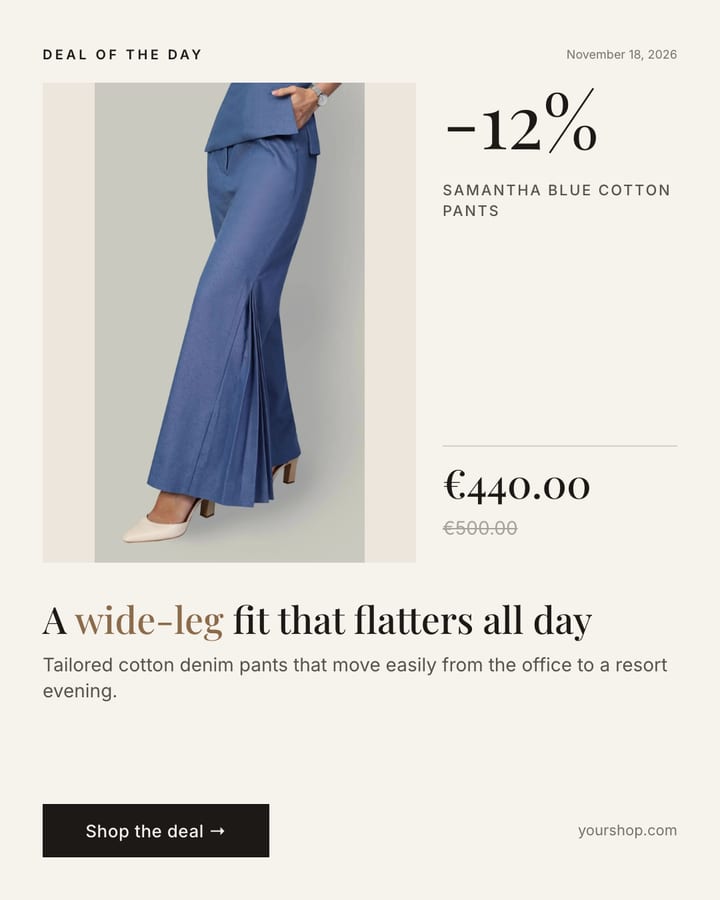
- The new price, big, and the old price crossed out next to it.
- The discount as a percentage, which is what people scan for first.
- One line on why the product is worth it, not a list of specs.
- Where to buy: your shop link on Facebook and Telegram, “link in bio” on Instagram.
Where does the discount come from?
Your store already knows both prices. WooCommerce keeps a regular price and a sale price for every product on sale; Shopify keeps a price and a “compare at” price.
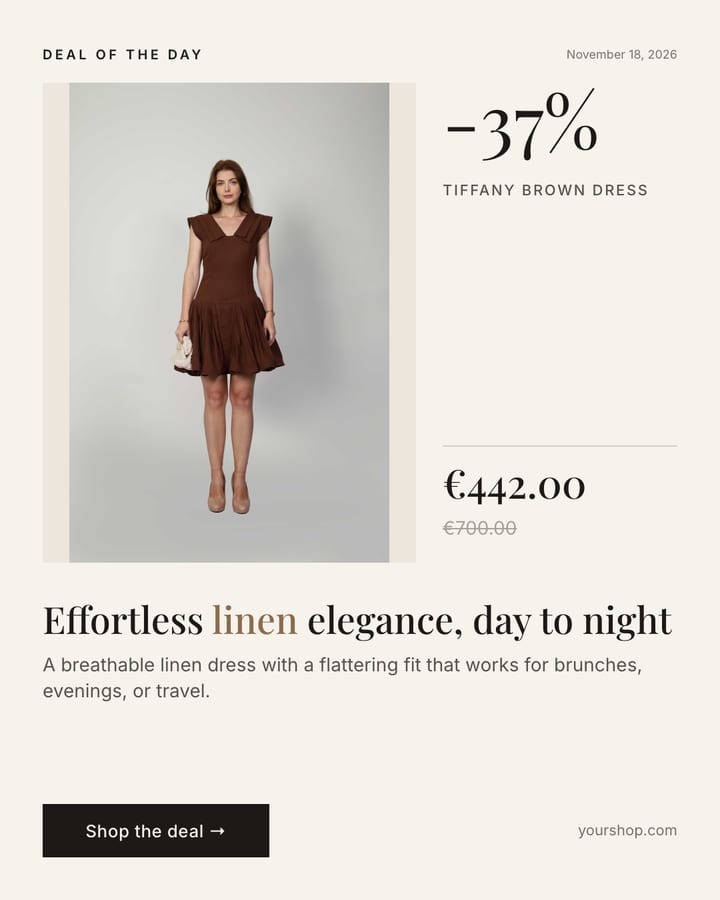
The discount is the difference as a share of the regular price: a dress that goes from €700.00 to €442.00 is 37% off. Worked out from the store’s own numbers, the post can’t show a discount you didn’t set, and when you change a price, the next post follows.
How do you set it up for a WooCommerce store?
- Enter your store’s address. WooCommerce has a public product feed, the Store API, that shows every visitor your products and prices. Recurset reads it the same way: no plugin to install, no admin password, no API keys.
- Take only what’s on sale and in stock. The agent asks the store for products that are on sale and available, so it never promotes something people can’t buy.
- Pick one a day, at random. A random pick spreads attention across all your deals instead of always showing the newest. On a day with nothing on sale, the agent simply doesn’t post.
- Put it in your design. The photo, the prices and the discount go into the same template every day, in your colours and fonts. AI writes the short headline and the line about the product from its description, in your tone.
- Choose where and when. Instagram, Facebook and Telegram, at the hour your followers are online. Approve each post for the first week, then let AI Check review them, or let them go out on their own.
In Recurset this is the Deal of the Day robot: you enter your store’s address and choose your pages, and the rest is already set up.
What about Shopify?
Shopify stores have the same two numbers: a product’s price and its “compare at” price. Recurset has a ready Product of the Day robot for Shopify; for sale posts, describe what you want to Copilot and it sets up an agent that reads your compare-at prices the same way.
A daily deal or a weekly sale carousel?
- A deal a day keeps your page active and works best when you have a few products on sale at a time.
- A weekly sale carousel gathers up to five products on sale into one swipeable post, with the biggest discount on the cover (“Up to 44% off”). It suits stores with many discounts, posted once a week, for example on Friday morning. That’s the Sale Carousel robot.
Many shops run both: the carousel at the end of the week and a single deal on the other days.
When should deal posts go out?
When your followers are online and in a mood to shop. Instagram and Facebook both show this in their insights for professional accounts: the hours and days your audience is most active. Pick one of those hours and keep it, so people get used to finding a deal from you at the same time.
One deal a day is enough. More than that and your page starts to look like a catalogue; fewer and people forget to check. For a weekly carousel, the end of the week works for many shops, when people plan what to buy over the weekend, but your own insights are a better guide than any rule. If your sales are seasonal, the agent can be paused between campaigns and switched back on when the next sale starts.



What are the other ways to do it?
- Store apps and plugins that share each new product to Instagram or Facebook. Good for announcing new arrivals; most post a plain product photo and don’t know which products are on sale, or by how much.
- Zapier or n8n workflows. Flexible if you like building them, but you connect the store trigger, the image, the caption and the posting yourself, and the post is usually just the product photo.
- Scheduling tools like Buffer or Later. Great for posts you make yourself, but you still make each one.
If what you want is a finished, branded post with the real discount every day, without building anything, that’s what a Recurset agent does.
Try it on your storeDeal of the Day works on the Free plan.
See the robotWhat mistakes should you avoid?
- Showing a discount that isn’t real. In the EU, the “before” price you show must be the lowest price of the last 30 days (the Omnibus rules). Check what applies where you sell; taking both prices from your store at least keeps every post in line with your shop.
- Posting the same product again and again. Pick at random from everything on sale.
- Promoting something out of stock. Only take products that are available.
- A different look every day. One template, filled with new data, makes your page recognisable at a glance.
Questions
Do I need an Instagram Business account?+
Instagram lets apps publish only to professional accounts, Business or Creator. Switching is free and takes a minute in the Instagram app.
Does it need my WooCommerce admin password or API keys?+
No. It reads the same public product data your visitors see, through WooCommerce’s Store API. Nothing to install on your site.
What happens on a day with nothing on sale?+
The agent doesn’t post that day, and picks up again as soon as a product is on sale.
Can the posts be in my language?+
Yes. Set the language once and the headline, the text and the captions are written in it.
How much does it cost?+
Deal of the Day runs on the Free plan, on Instagram and Facebook. Starter adds Telegram and LinkedIn, more agents and AI Check.